![Logo-cedreo-bkg-white-1.png]](https://help.cedreo.com/hs-fs/hubfs/Logo-cedreo-bkg-white-1.png?height=40&name=Logo-cedreo-bkg-white-1.png)
Generate a render: two modes available
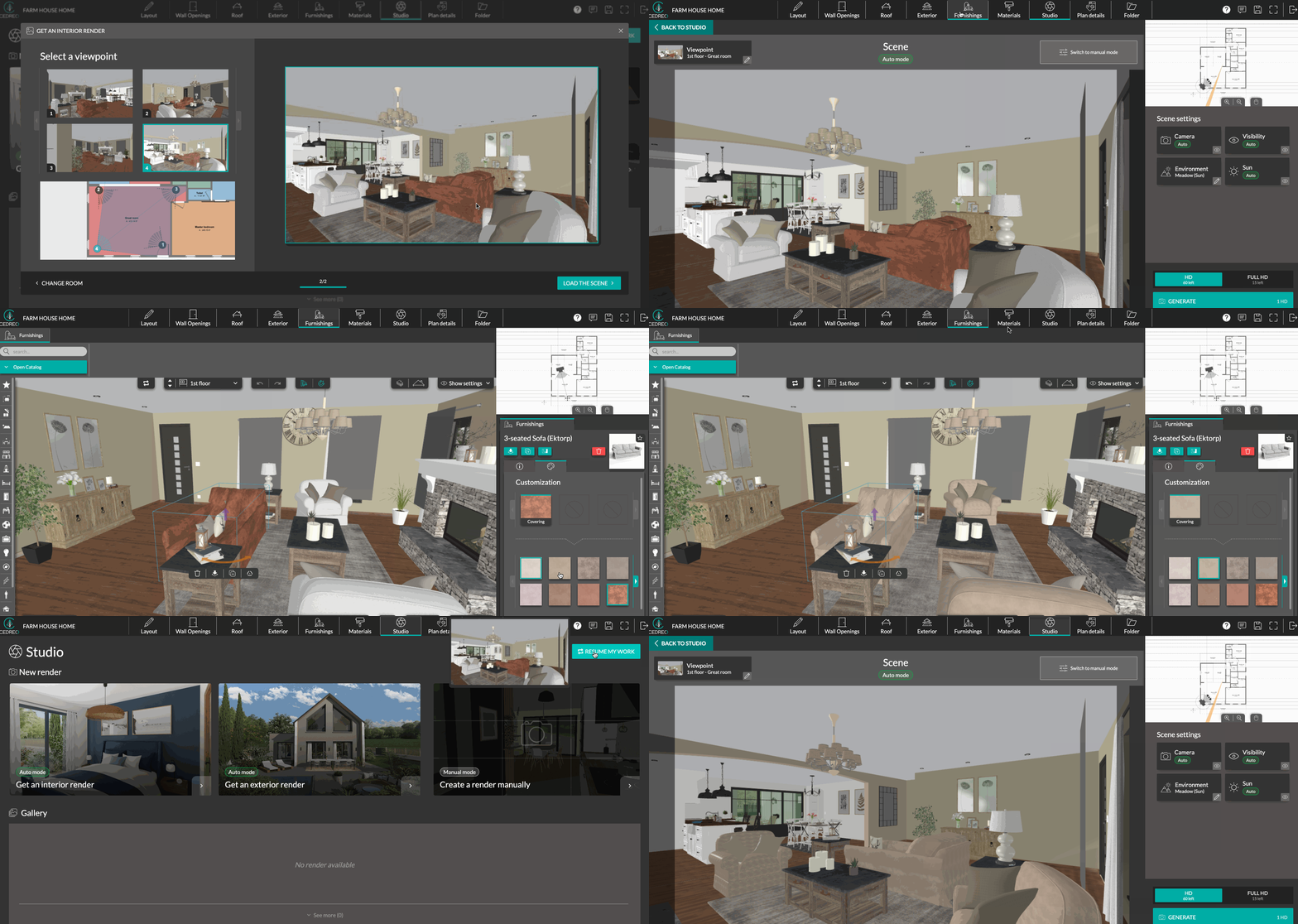
To create a render, go to the "Studio" step.

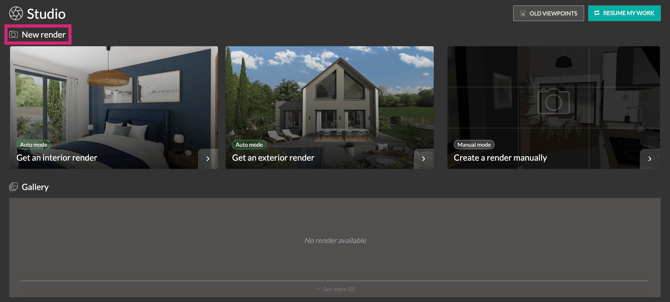
In the "New Render" section, two modes are available to you: "Auto mode" or "Manual mode."
-
Auto Mode
For auto mode, choose between the following two options: "Get an interior render" or "Get an exterior render."
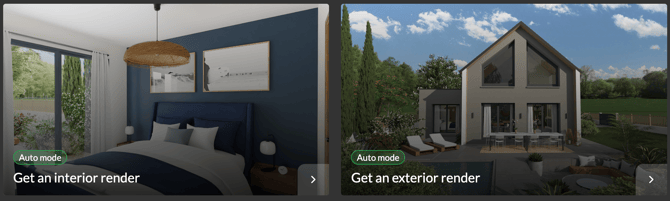
Auto mode allows you to generate renders in just a few seconds. Choose a room for interiors or an elevation for exteriors: auto mode automatically handles the camera, lighting, and optimal viewpoints.
ℹ️ For more details on auto mode, consult the following tutorials:
-
Manual Mode
For manual mode, select the "Create a render manually" mode.
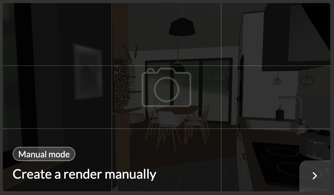
In manual mode, you have full control over your rendering. For customized renders, freely adjust the angle, focal length, camera position, and even the position of the sun! This mode is ideal if you want to create precise, tailor-made shots.
ℹ️ To learn more about manual mode, consult the tutorial: How to generate a render using manual mode.
Gallery
Beneath the rendering options, you will find the "Gallery." It allows you to quickly view all your renders, whether they are finished or currently being generated.
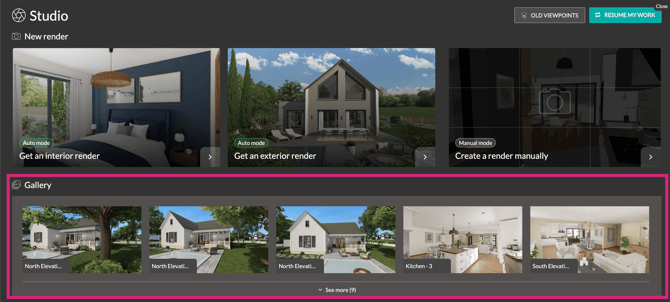
You can perform several actions on the renders: rename, download, delete, and re-run a render from the saved scene.
ℹ️ To learn more about the gallery, see: Saved Angles in Gallery: download and create new renders
Old Viewpoints
For projects created before this new "Studio" phase, your previously saved views remain accessible. To find them, click the "Old viewpoints" button in the top right corner.

A window then opens, displaying all your old viewpoints. Select the one you want, then click "Load the scene." You are automatically switched to manual mode, with all the settings associated with that viewpoint preserved.
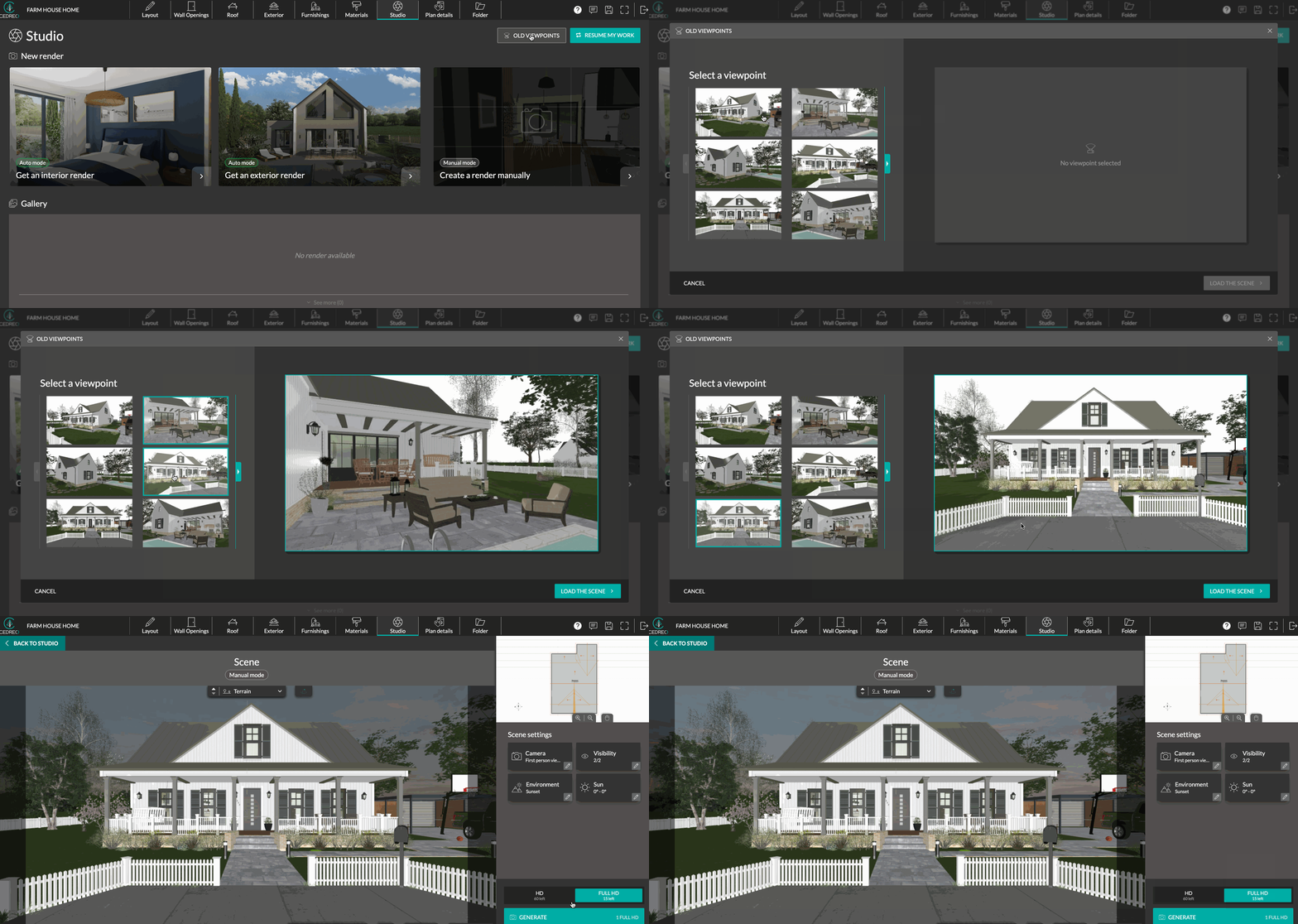
ℹ️In the "Studio" stage, every render added to the gallery serves as an automatic save. When you click on a render, the "Load this render scene" button allows you to recreate the scene while preserving the same viewpoint and settings.
Resume My Work
For this "Studio" step, all that remains is to discover the function of the "Resume my work" button located at the top right.

This button takes you directly back to where you left off if you had started preparing or configuring a render, even after navigating to another step.