![Logo-cedreo-bkg-white-1.png]](https://help.cedreo.com/hs-fs/hubfs/Logo-cedreo-bkg-white-1.png?height=40&name=Logo-cedreo-bkg-white-1.png)
Once your project has been furnished, you can quickly generate an interior rendering using "Auto mode" in the "Studio" step.
1. Head to the next stage: "Studio".

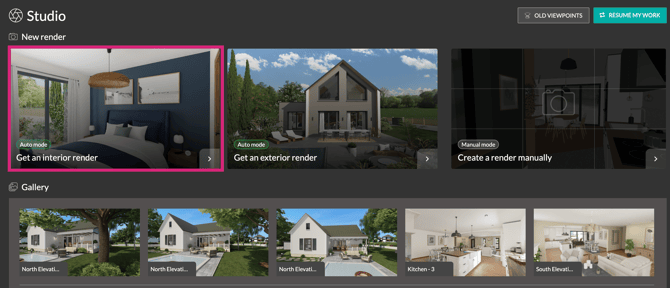
2. In the "New render" section, click on the "Auto mode / Get an interior render" thumbnail.
3. A tab will open, displaying the ground floor plan by default. Select the room in which you wish to generate the rendering.
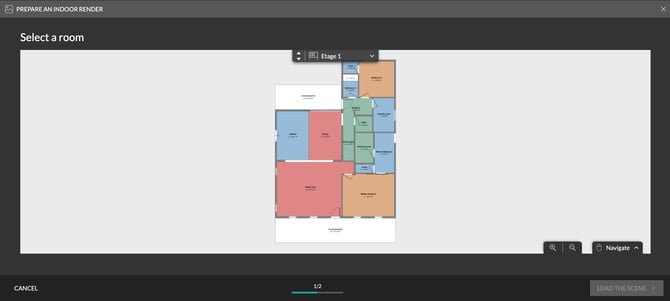
ℹ️ If the room is located on a different level, simply change the plan level, then select the desired room from the drop-down menu.
⚠️ Ensure that the rooms are labeled correctly. The room type automatically influences the choice of viewpoints, camera position, and sun orientation. To learn more about room types, see the tutorial: Edit a room.
4. Auto mode automatically generates multiple viewpoints to offer you the most relevant angles for your project.
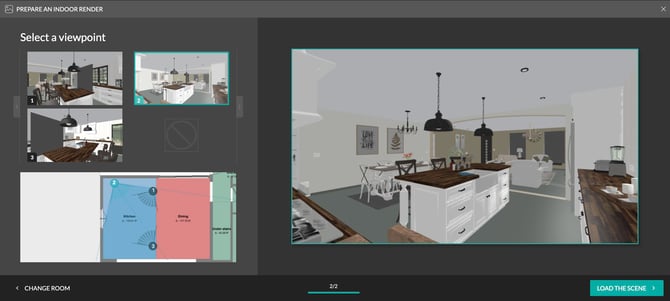
Select the "Viewpoint" of your choice by clicking either on the real-time preview thumbnail or on a camera in the 2D plan.
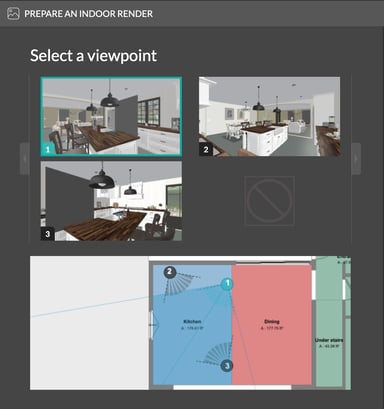
5. Click on "Load The Scene."
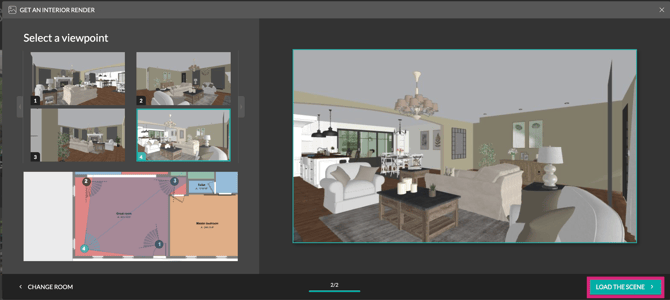
6. The "Scene" window opens full-size with the selected viewpoint. Access "Scene settings" in the right-hand panel.
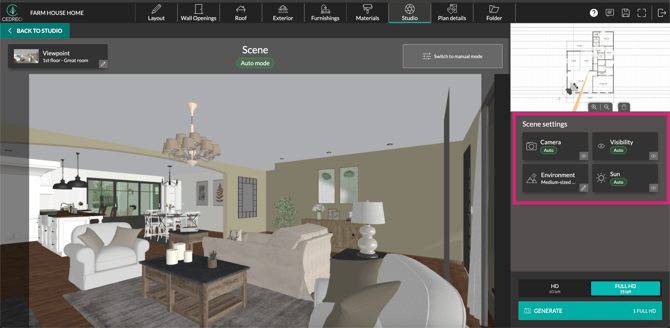
You can only modify the "Environment" setting to choose the background for your rendering. For more information: How to Choose a Rendering Environment.
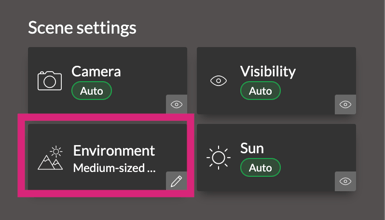
Select a "Cedreo background" or import an image via "Customized background".
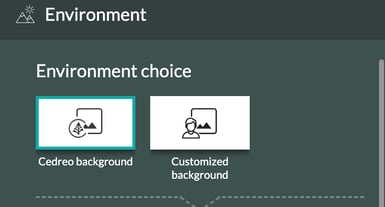
To return to the list of scene parameters, click the "Close" button at the very bottom of the window.
The "Camera," "Visibility," and "Sun" settings cannot be modified in Auto mode. In this mode, they are optimally configured based on your scene.
💡"Switch to manual mode" by clicking the button to adjust these settings. This option can be a good alternative to switching directly to manual mode.
But be careful: this action is irreversible. To return to auto mode, you will have to restart the procedure from the beginning.
7. Once the environment is selected, choose your rendering format from "HD," and "FULL HD."

⚠️ By default, the format is set to "HD". Check your format before starting a rendering.
8. Finally, click on "Generate" to start creating the visual.

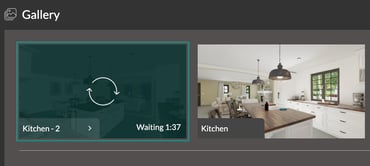
The rendering will appear in the "Studio" step gallery, along with an estimated generation time.
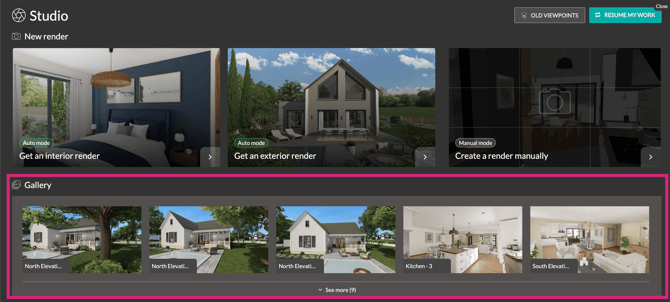
💡You can generate up to two renderings simultaneously; there is no need to wait for one to finish before launching another.