![Logo-cedreo-bkg-white-1.png]](https://help.cedreo.com/hs-fs/hubfs/Logo-cedreo-bkg-white-1.png?height=40&name=Logo-cedreo-bkg-white-1.png)
Setting: "Environment"
This setting allows you to choose the desired background for your visuals.
To access the "Scene Settings" from the "Studio" step, generate a render using one of the three modes (Auto Interior, Auto Exterior, or Manual).
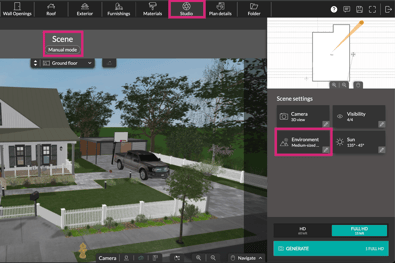
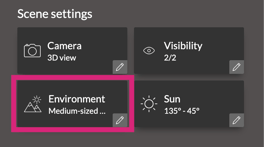
By clicking on "Environment," you can select a "Cedreo background" or import an image via "Customized background."
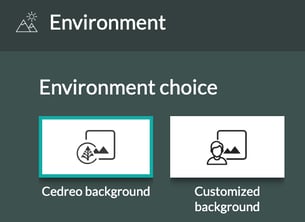
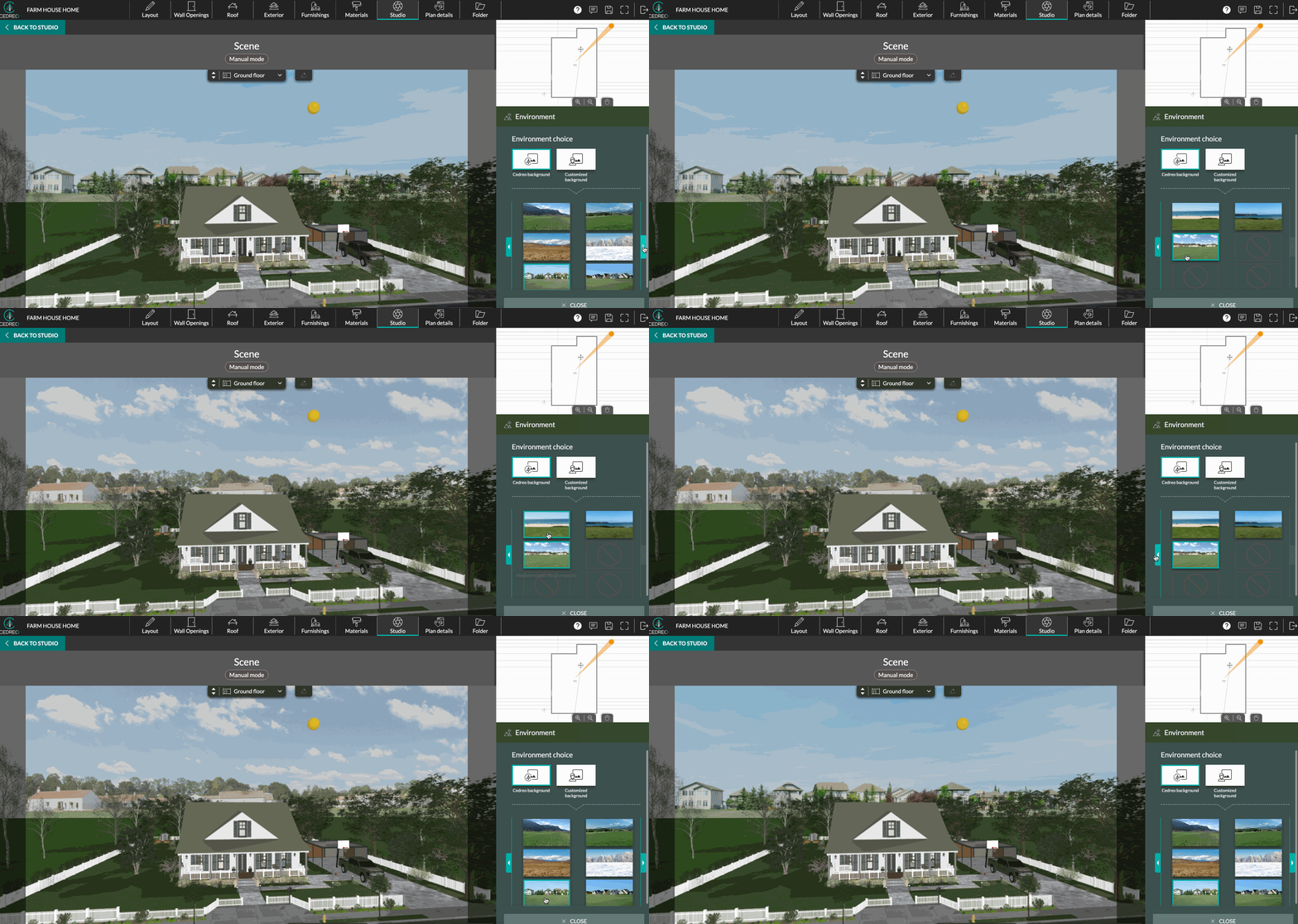
Cedreo backgrounds offer 13 environments with diverse settings. Most allow for full sun adjustment, just like images imported via "Customized background." However, three environments are exceptions, offering only partial sun settings or none at all.
⚠️ The choice of environment influences the "Sun" parameter, which is also accessible in the "Scene settings" panel.
Environments: advanced sun settings
Ten environments offer the option to manage the sun either automatically in "Auto mode" or manually in "Manual mode." This sun control allows you to create a play of shadows in your exterior renderings or adjust the light intensity in interior renderings.
💡Auto mode automatically optimizes sun settings for fast rendering.
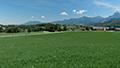
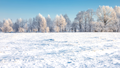
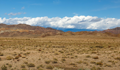
Here are the environments with advanced sun settings:
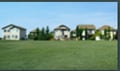 |
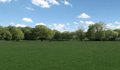
.png?width=120&height=70&name=VIZ2%20(1).png)
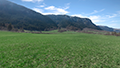
.png?width=120&height=70&name=viz2%20(3).png)
.png?width=120&height=70&name=VIZ2%20(2).png)
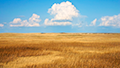
When selecting one of these environments, the sunlight orientation can be adjusted using the "Longitude" (sun orientation) and "Latitude" (height) options.
ℹ️ In "Auto mode," settings are optimized based on your scene: the values appear grayed out and cannot be changed. In "Manual mode," however, you can adjust them freely.
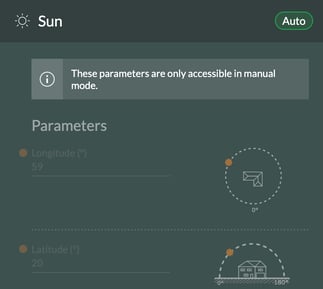
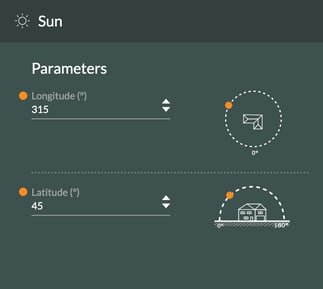
ℹ️ To learn more about managing sunlight in manual mode, consult the tutorial: How to manage the sun in manual mode.
Characteristics of 3 environments
Three environments have sun settings that differ from the others:
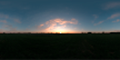
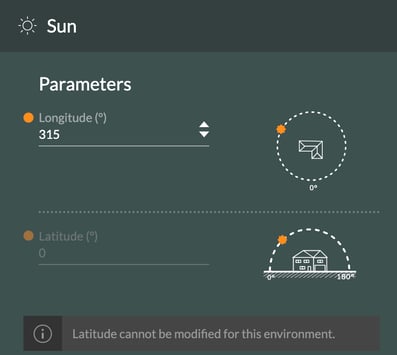
- Sunset
The "Sunset" environment features a fixed latitude of 0—which cannot be changed—to reproduce late-day light, while the longitude remains adjustable.
You can therefore only modify the longitude to select the facade to be illuminated.
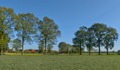
- Countryside
The "Countryside" environment does not allow for the modification of sun settings: its position remains constant regardless of the viewpoint or scene. The "longitude" and "latitude" values are therefore fixed and cannot be changed.
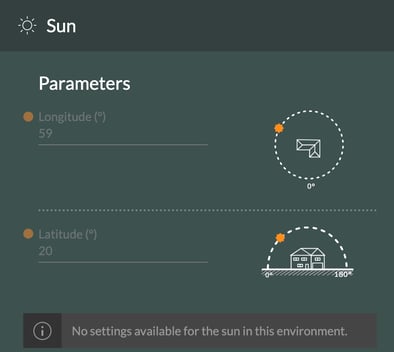
⚠️ Even in auto mode, the “Countryside” environment always retains the same sunlight values and does not adapt to your viewpoint to optimize brightness.
💡To take full advantage of the sun settings and achieve better contrast, we recommend choosing a different environment.
- White Environment
This white environment is distinguished by the absence of sunlight: the rendering is limited to a white background.
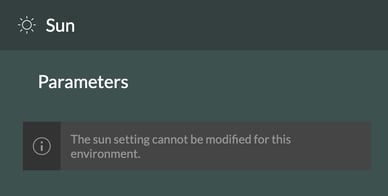
The white environment serves two purposes:
- Generate renderings of the project's aerial views or 2D plans. (Can only be done in manual mode.)
- Create a 3D interior view of the project without shadow effects.
💡 To prevent the grass from appearing continuously and to keep the white background visible, go to the right-hand panel, open the scene’s “Visibility” settings, and uncheck the “Infinite ground” box.