![Logo-cedreo-bkg-white-1.png]](https://help.cedreo.com/hs-fs/hubfs/Logo-cedreo-bkg-white-1.png?height=40&name=Logo-cedreo-bkg-white-1.png)
ℹ️ This tutorial applies only to a render generated in "Manual mode."
Setting : "Camera"
The "Camera" parameter allows you to define the viewpoint: angle, position, and height.
To select the camera type for a render, go to the "Studio" step in "Manual mode," then, in the "Scene" window, access "Scene settings."
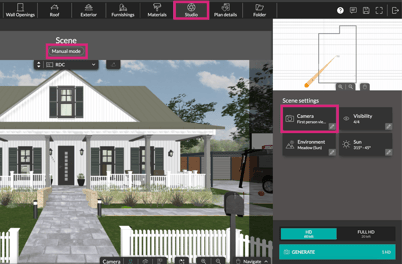
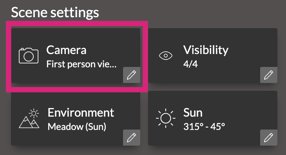
By clicking on the "Camera" setting, you can select and configure the desired camera type. Three options are available: "First person view," "3D view," and "Top view."
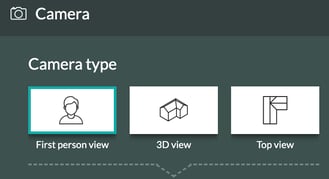
The choice of camera type depends on the desired visual effect.
ℹ️ The camera types in "Scene settings" are the same as those at the bottom of the screen. You can therefore select them from either location.

The "First person view" camera
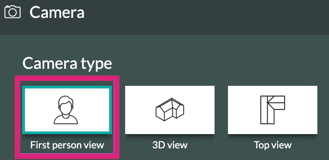
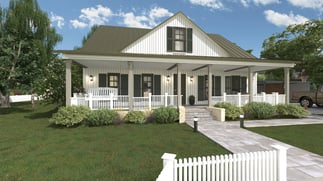
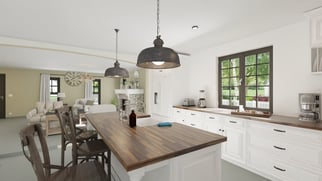
The "First person View" camera is recommended for achieving a realistic and precise viewing angle. By default, it generates a view from eye level (4 feet 11 inches) while maintaining a level line of sight. It is ideal for both interior and exterior renderings, as it helps your clients visualize themselves within the space.
To use the "First person view" camera, you can move the camera using the mouse, the "Navigation" button, the "Zoom In/Out" controls, or the 2D camera located at the top right of the plan.
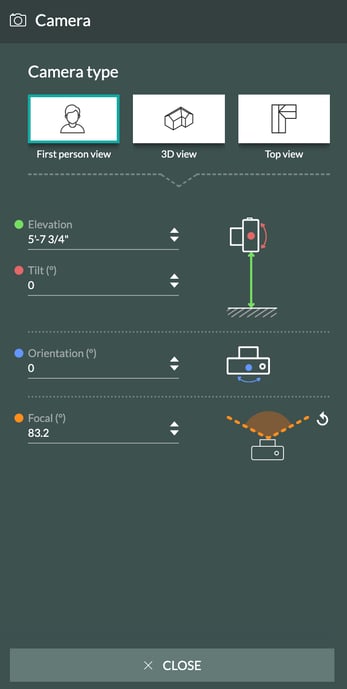
You can also use the settings in the right-hand panel associated with this camera.
ℹ️ Check out the tutorial How to Generate an Interior or Exterior Render to get an optimal view of your interior and exterior renders at the "Studio" stage. Content incoming
The "3D View" camera
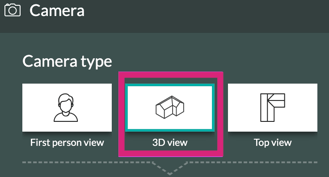
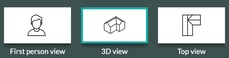
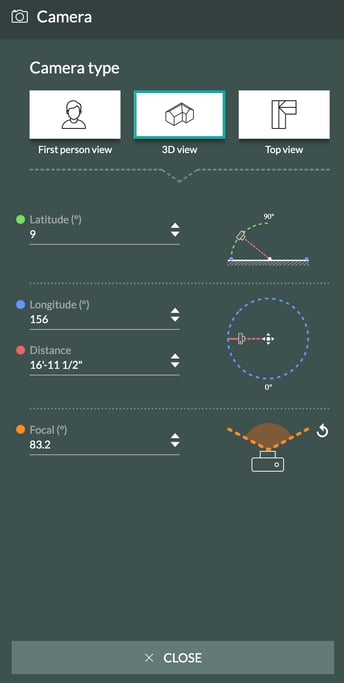
The "3D View" camera allows you to visualize the house's full three-dimensional form and easily rotate around it. It is highly useful for landscaping and home design. For renderings, it enables the creation of 3D axonometric visuals.
Regarding camera movement in the "3D View," you can navigate directly using the mouse or the navigation controls, as well as the settings available in the right-hand panel.
ℹ️ Consult the tutorial How to Generate an aerial view Render with the "3D View" camera to achieve an optimal viewpoint at the "Studio" stage. Content incoming
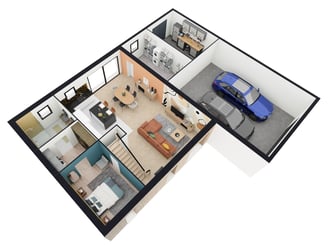
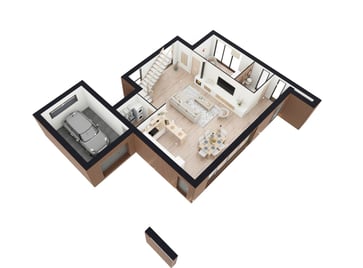
The "Top view" camera
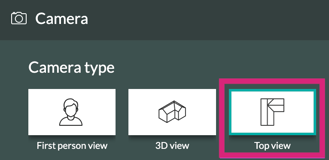
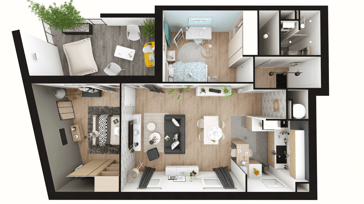
The top view provides an aerial perspective, offering a comprehensive overview of the home's interior. It makes it easier to understand the spatial layout and organization.
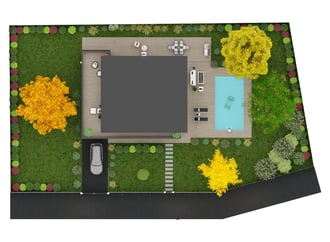
It is particularly well-suited for producing renderings of 2D plans or site plans.
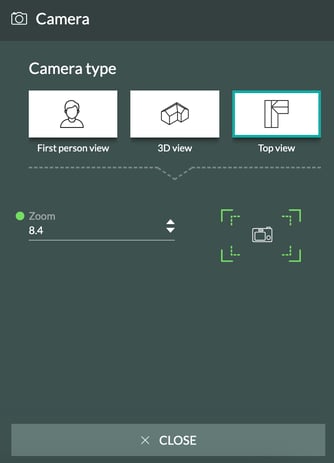
To adjust the camera view, use the mouse wheel or the settings in the right-hand panel to center, zoom in, or zoom out.
ℹ️ Check out the tutorial: Generate a render of your 2D plan using the "Top View" camera to achieve the optimal viewpoint for this type of render during the "Studio" stage. Content incoming
Examples of visuals using the "Top view" camera: