Skip to content
English
  • There are no suggestions because the search field is empty.

Saved Angles in Gallery: download and create new renders

In the Studio step, the gallery allows you to view, rename, download, delete, and enhance a render.


The Gallery

Go to the "Studio" step.

8-10 studio step

Below the options for creating a new render, you will find the render "Gallery." It allows you to quickly view all your renders, including those currently being generated:

8-09 gallery

ℹ️ While a render is being generated, an estimated wait time is displayed at the bottom left of the thumbnail.
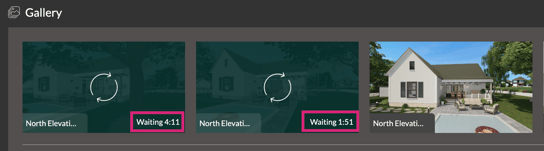
8-10 render time

ℹ️ On each render in the gallery, the name of the render appears in the bottom left corner e.g., North Elevation, Kitchen - 3...

8-10 gallery labels


Render information and actions

Clicking on a render in the gallery opens a window displaying the image in full size.

ℹ️ The "See more" button appears if you have at least 6 renders in the gallery.
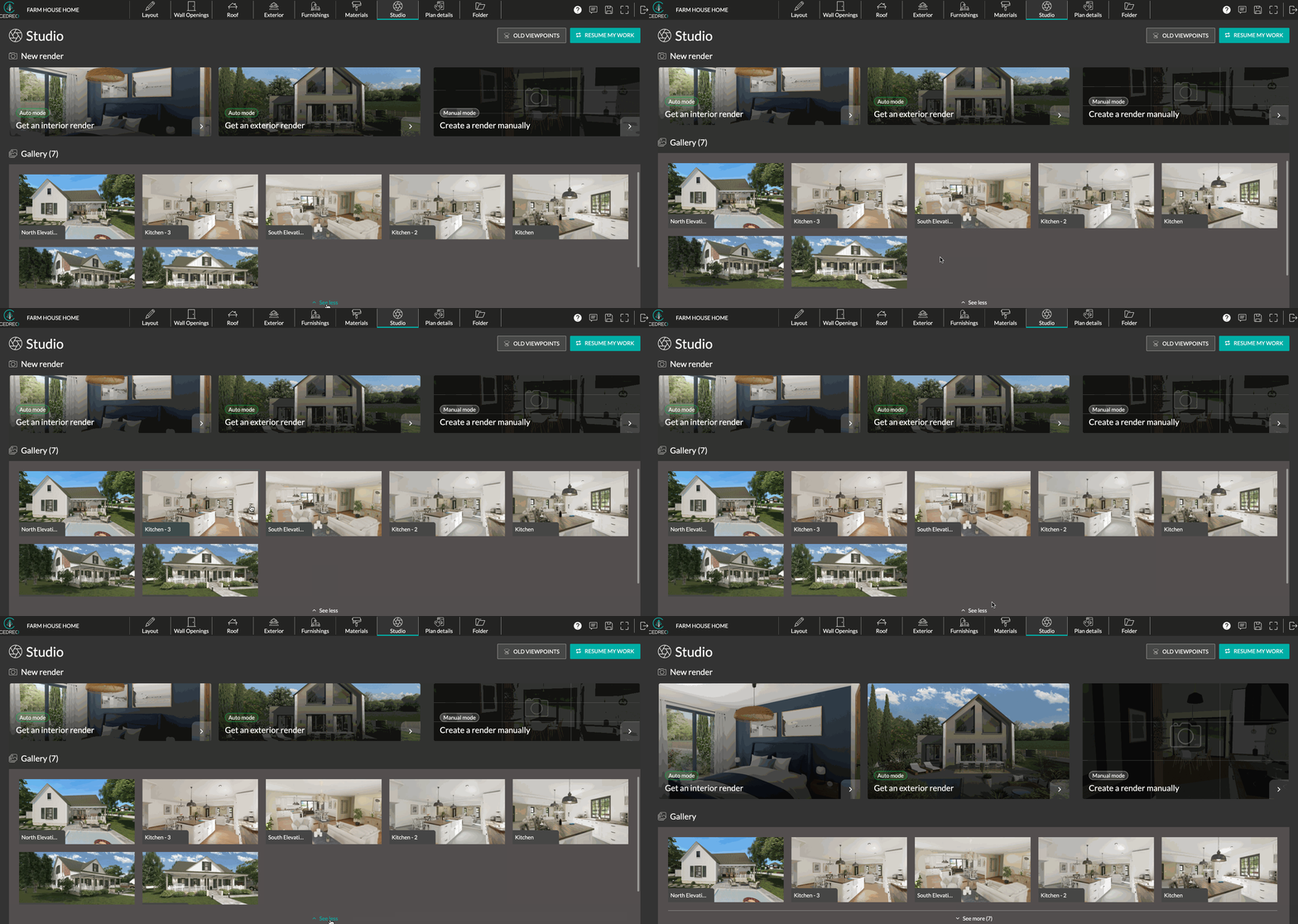
8-10 see more gallery

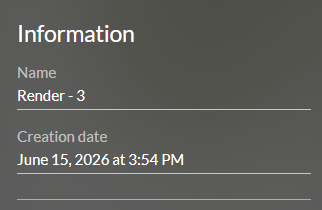
  • Information

In the top right corner, you will find several pieces of information:

- "Name" of the render, which you can modify.

- "Creation date" indicates the date the render was generated.


8-10 render information


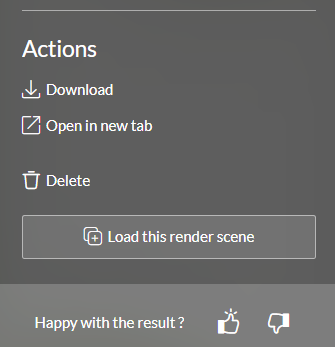
  • Actions

Following the information, several actions are possible:

- "Download" allows you to save the render to your computer in .jpg format.

- "Open in new tab": handy for viewing just the image in a new browser tab.

- "Delete" the render. You will be asked to confirm before permanent deletion.

- "Load this render scene": This action allows you to reopen a scene with the same camera angle and render settings.

ℹ️ Each finalized render automatically saves the viewpoint and the scene settings.

- Indicate your satisfaction with the result by answering the question "Happy with the result?" with a thumbs-up or thumbs-down. 

ℹ️ The recorded result contributes to improving the quality of Cedreo visuals.


8-10 rendering actions


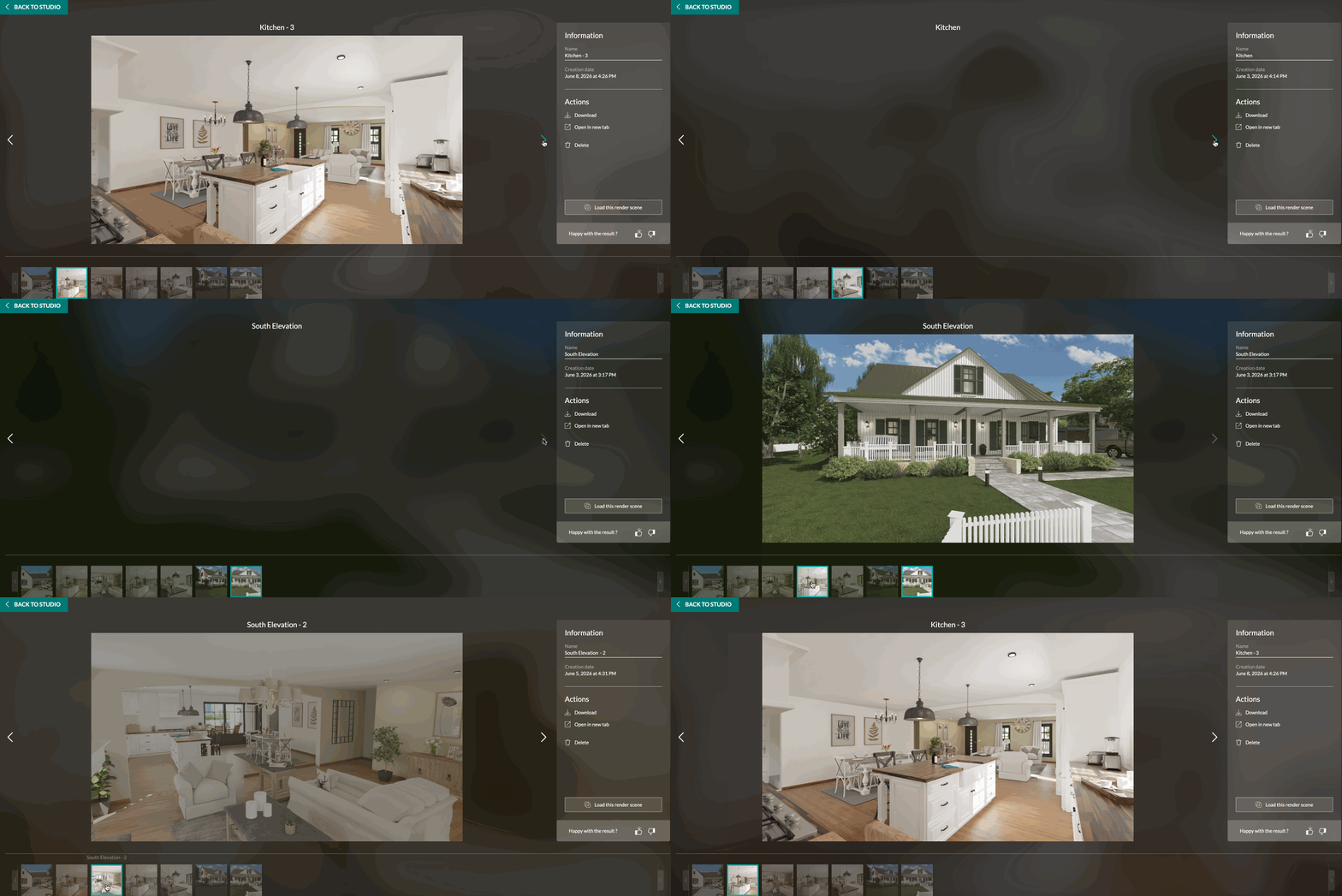
Navigate between renderings

You have two options:

- Use the arrows located to the left and right of the rendering to switch between visuals:

- Alternatively, access the full set of visuals as thumbnails in the lower part of the interface. Simply click on one to view it in full size and check its details and associated actions.
8-09 navigate studio