Skip to content
English
  • There are no suggestions because the search field is empty.

How to Generate an Axonometric Render

In manual mode, use the “3D View” camera to create a dollhouse-style render and showcase your project's interior layout, materials, and design details.


ℹ️ This tutorial applies only to a render generated in "Manual mode".

To create a 3D aerial view of your project, go to the "Studio" step.

8-10 studio step

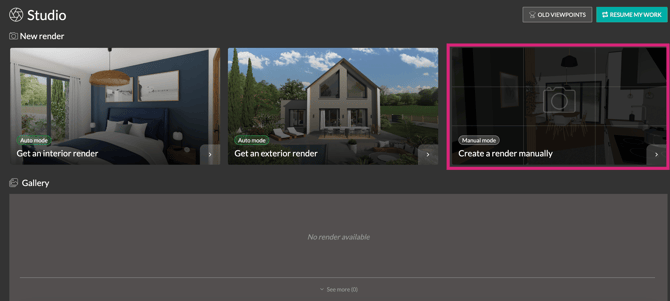
1. Click on the third thumbnail: "Manual mode / Create a render manually".
8-05 manual

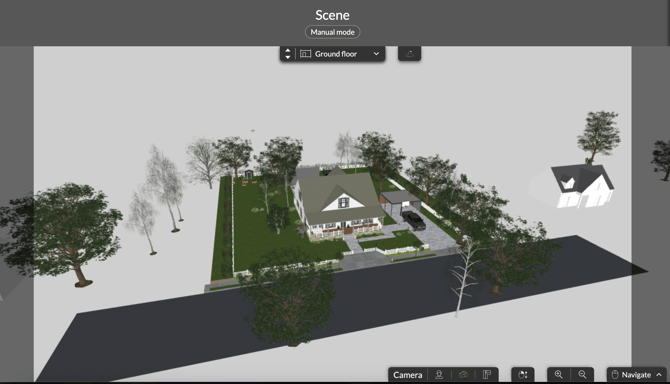
The "Scene" window opens by default with the camera type and position, as well as the level, used during the last step.

💡Before starting, select the level where you want to position the camera.

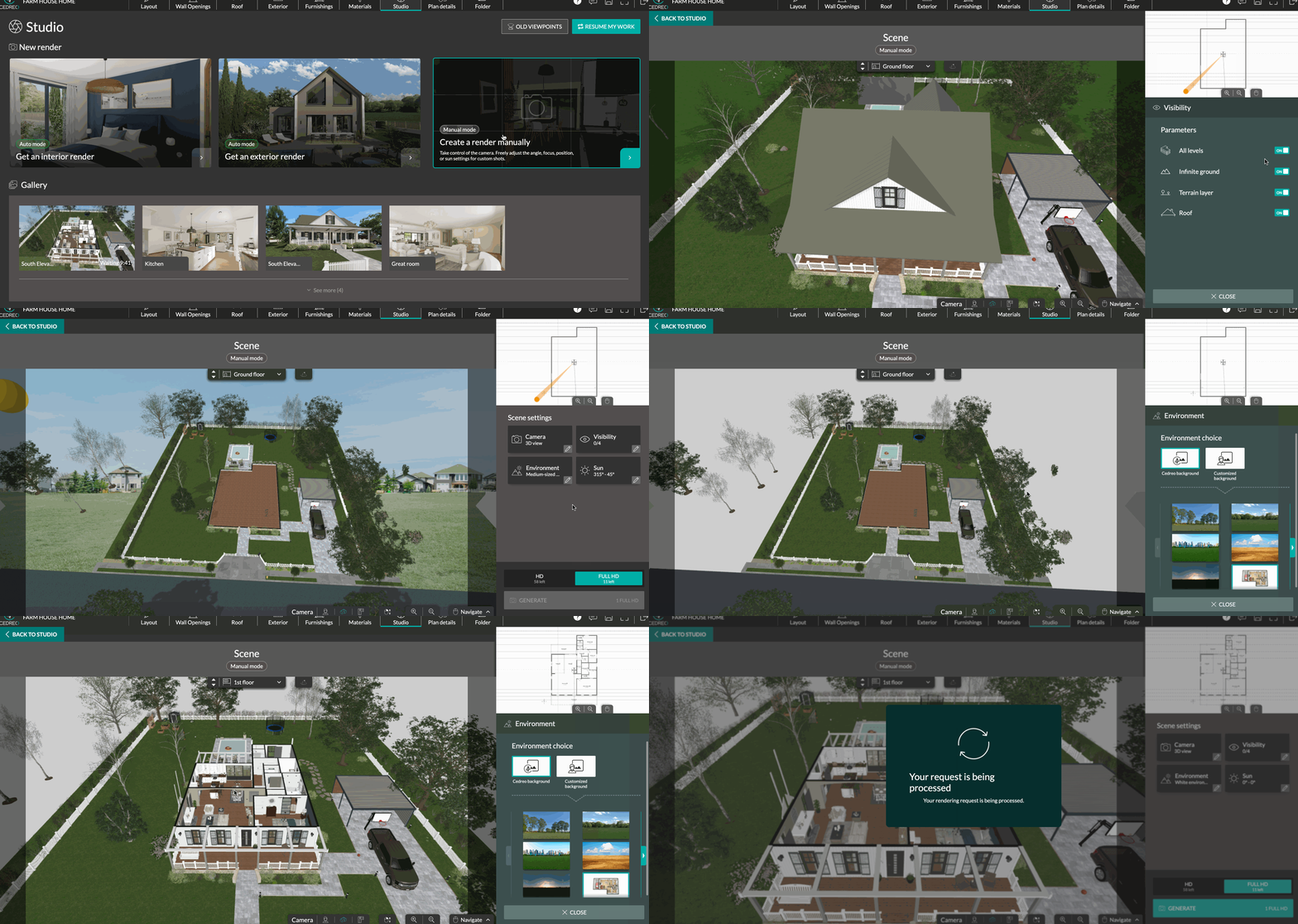
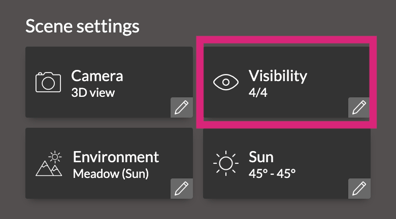
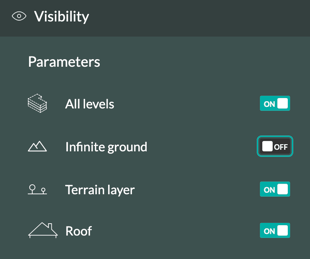
2. In the "Scene Settings" panel, click on "Visibility" and then turn off the 4 options (set them to "OFF") to display the interior of the house.
8-05 visibilty


8-05 visibility terrain off

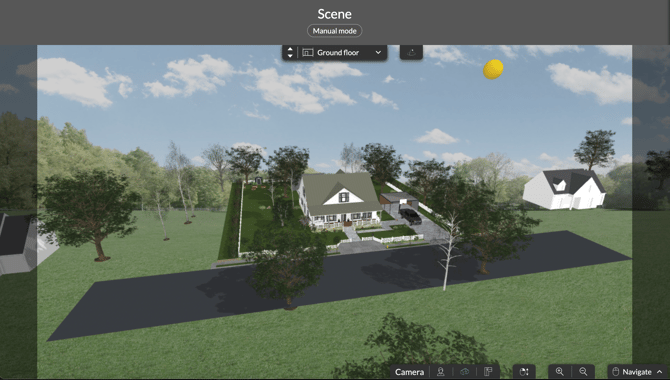
⚠️ For the "Terrain" level, only "Infinite ground" and "Terrain layer" are available.
8-05 scene with no ground

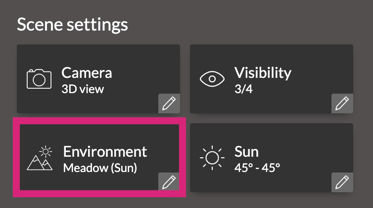
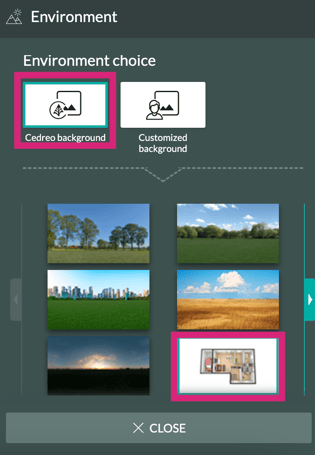
3. Go to the "Environment" section and select the Cedreo "White Environment" to make your home's floor plan stand out against a neutral backdrop.
8-05 environment-1


8-05 white background
8-05 white scene


ℹ️ For more details on environments, consult the tutorial: Choosing Your Rendering Environment.

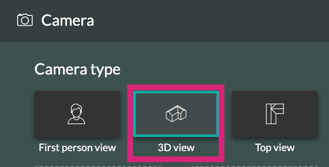
4. Still in the "Scene Settings" panel, under the "Camera" section, click on the "3D View" type:
8-05 3D

Or via the camera buttons at the bottom of the screen. 

8-05 change camera

5. To obtain an aerial view, adjust the viewpoint directly using the mouse or the settings in the right-hand panel:
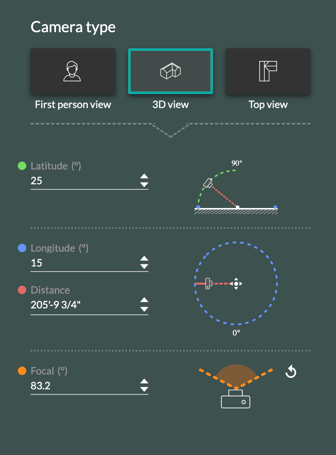

- "Latitude": refers to the camera's vertical angle relative to the house (up/down). It allows you to adjust the vertical tilt and, consequently, the height of the viewpoint.

💡For an axonometric view, we recommend setting the latitude between 50° and 60°.

- "Longitude": corresponds to the horizontal angle around the object (left/right). It allows you to rotate the camera around the house to change its orientation.

💡For an axonometric view, adjust the longitude to 45°, 135°, −45°, or −135°, depending on the desired orientation.

- "Distance": refers to the distance between the camera and the house. It acts like a physical zoom, bringing the viewpoint closer or moving it further away.

- "Focal length": corresponds to the camera's field of view (equivalent to a lens's focal length). It influences the perception of the scene (perspective, distortion) without moving the camera.

8-05 camera setting
6. Select the format and click "Generate" to start creating the visual.
 
8-03 generate
 
 
8-05 aerial view
 
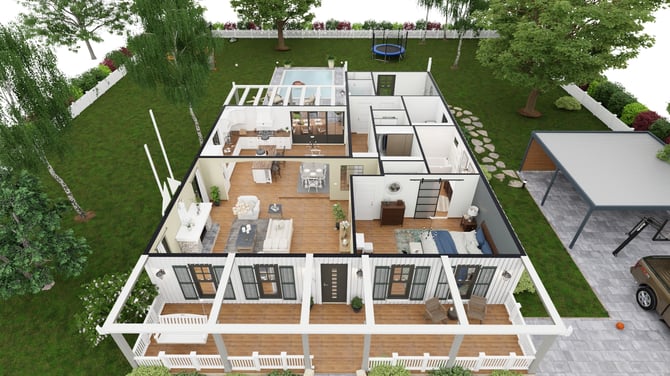
Here is an example of an axonometric view rendering:
 
aerial render