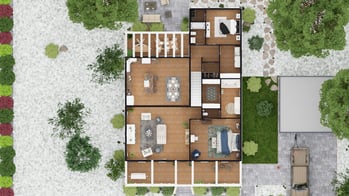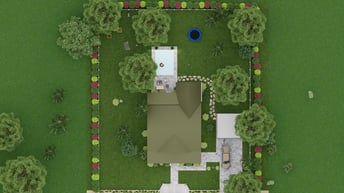
ℹ️ This tutorial applies only to a render generated in "Manual Mode," and it is important that your project's interior be furnished for this type of render.
1. To create a visual of your project's 2D plan, go to the "Studio" step.

2. Click on the third thumbnail, "Manual mode / Create a render manually."
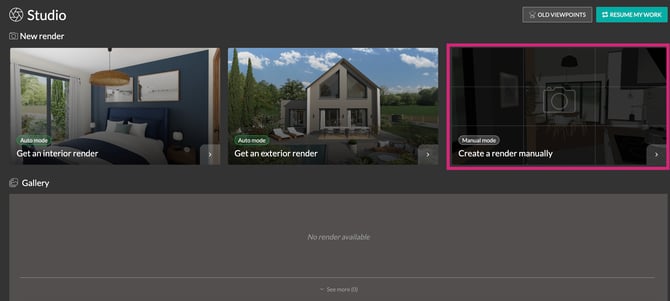
The "Scene" window opens by default with the camera type and position, as well as the level, used during the last step.
💡Before starting, select the level where you want to position the camera.
3. From the "Scene Settings" panel, click on "Visibility," then disable the desired options by toggling the switch to "OFF."
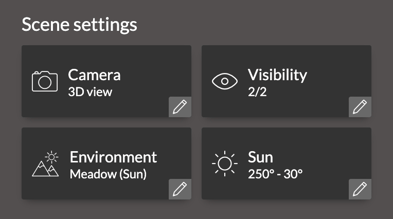
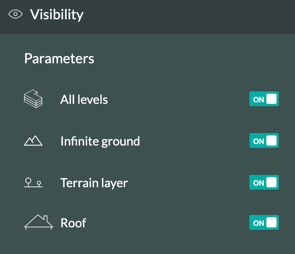
⚠️ For the "Terrain" level, only the "Infinite Ground" and "Terrain layer" settings are available.
4. Next, go to the "Environment" section and select "White environment" from the "Cedreo background."
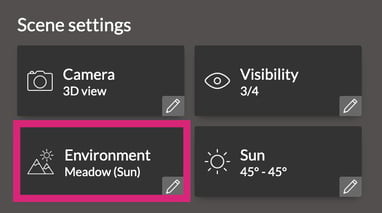
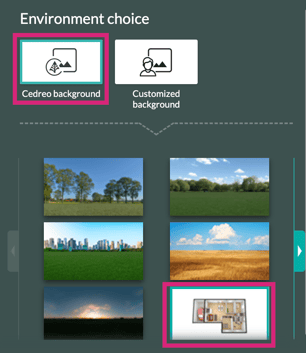
ℹ️ For more details on environments, consult the tutorial: How to Choose a Rendering Format
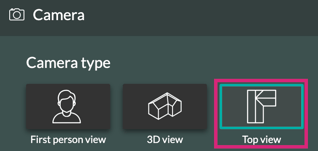
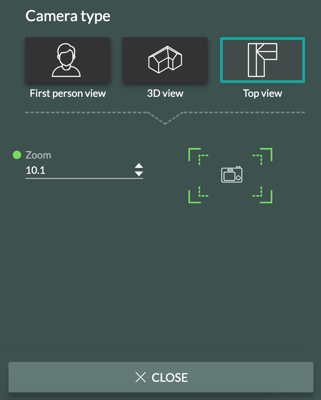
5. Still in the "Scene Settings" panel, under the "Camera" section, click on the "Top View" type:

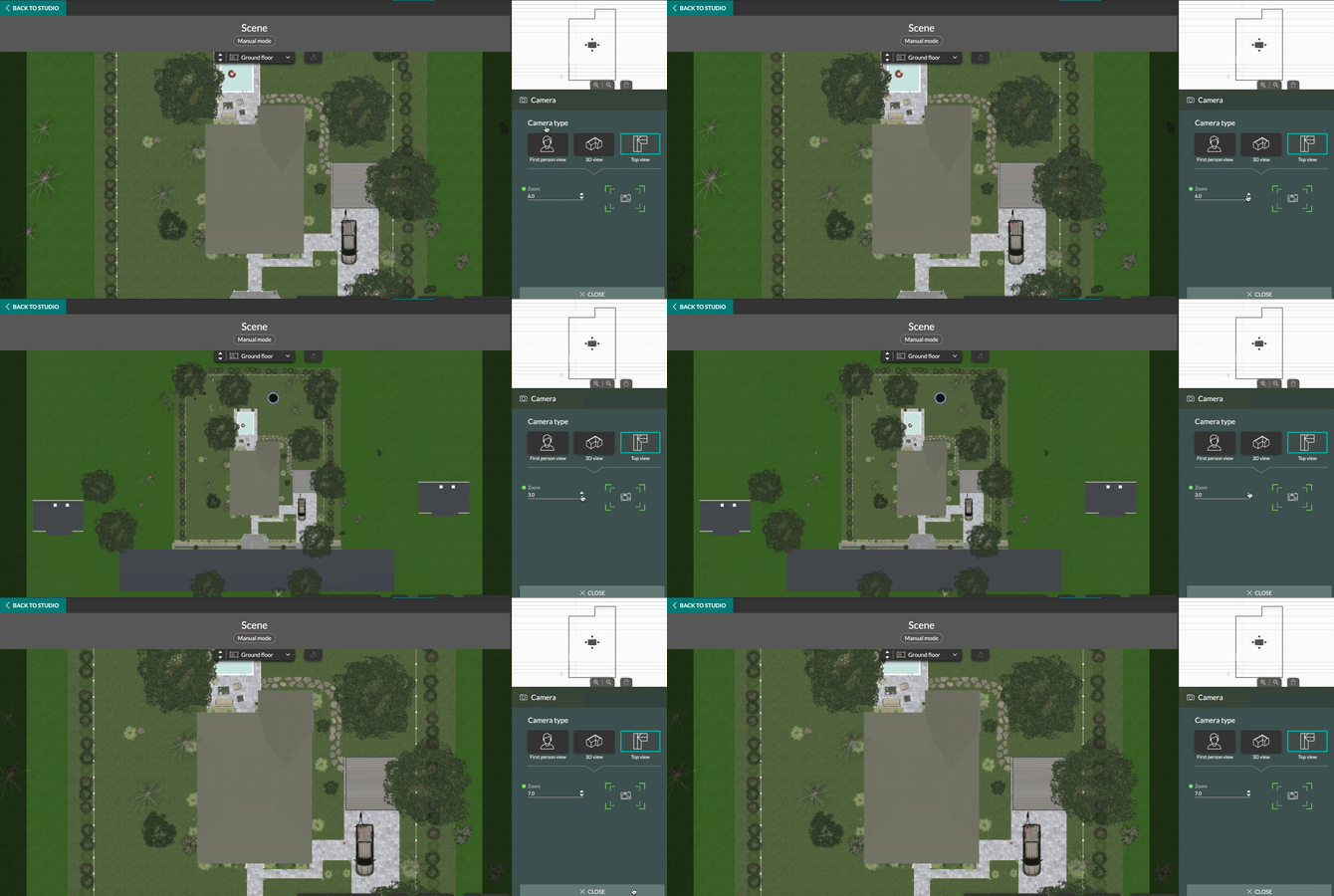
6. To obtain a centered view of the 2D plan or site plan, adjust the viewpoint directly using the mouse wheel or the settings in the right-hand panel:
7. Select the format and click "Generate" to start creating the visual.

Here are two examples of top-down renderings: