
Delete from the gallery
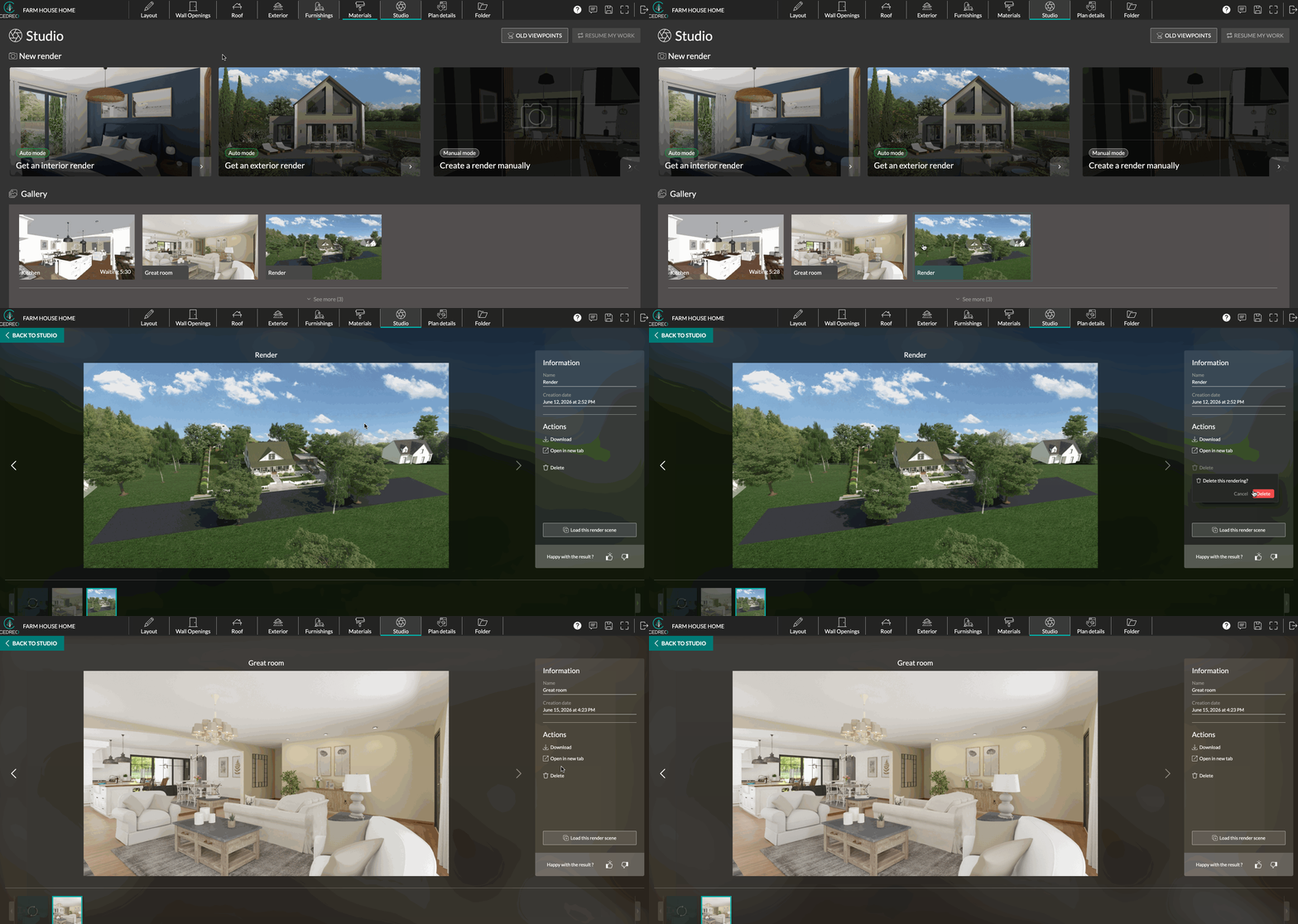
1. Go to the "Studio" step.

2.Below the options for creating a new render, you will find the render "Gallery." Click on the render you wish to delete.
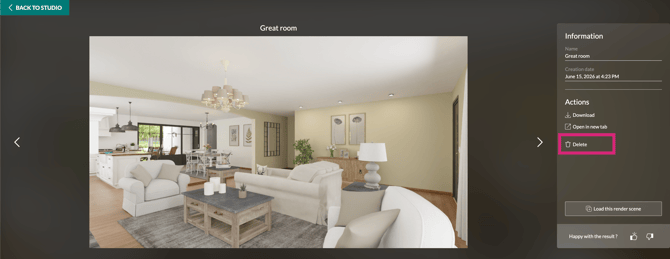
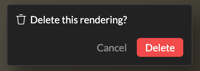
3. Click "Delete" in the actions on the right panel.
Delete from the project information page
1. On the dashboard, go to "My projects" and click on the card for the relevant project.

ℹ️ The project sheet provides access to all information regarding a project: surface table, blueprints, visuals, etc.
2. Scroll down to the “HD Pictures” section.
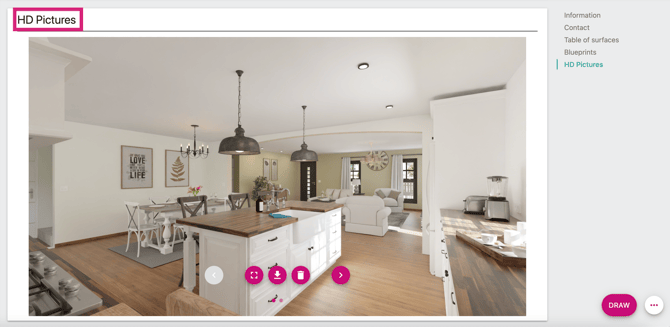
ℹ️ This section allows you to view, download, and delete a visual.
3. Select the relevant visual and click the trash can icon to delete it.


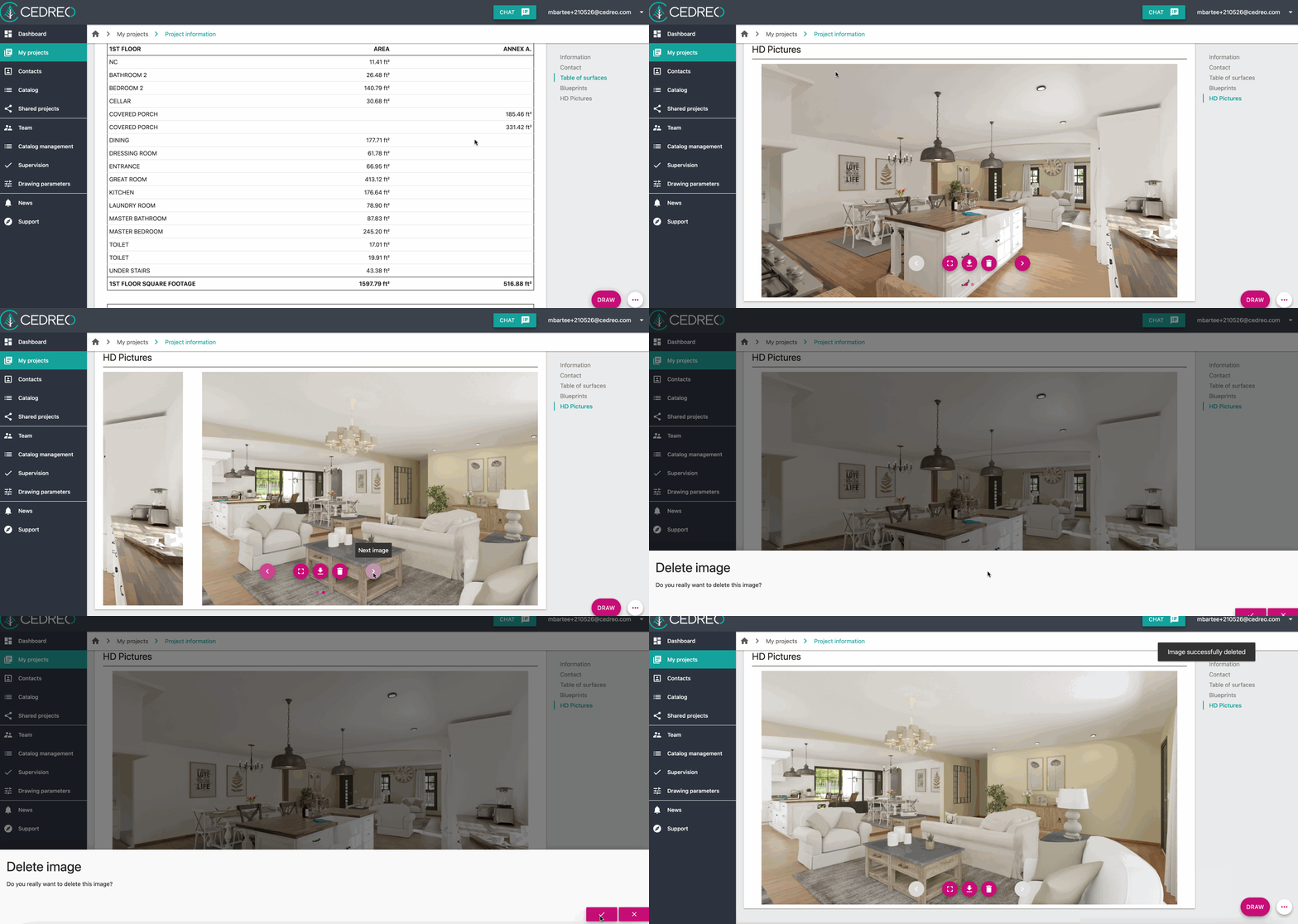
⚠️ Once deletion is confirmed, the render will be permanently deleted and cannot be restored.
Deleting a visual does not credit back a render.